In this tutorial, I will show you how to improve the performance of your ZFS using the affordable consumer-grade hardware (e.g., Gigabit network card, standard SATA non-SSD hard drives, consumer-grade motherboard etc.).
Many people found a problem on their ZFS system. The speed is slow! It is slow to read or write files to the system. In this article, I am going to show you some tips on improving the speed of your ZFS file system.
Notice that this article was originally based on ZFS on FreeBSD. Although most concepts can be applied to Linux, you may want to check out these two articles: ZFS: Linux VS FreeBSD and ZFS On Linux Emergency Recovery Guide. I always go back to the second article to rescure my ZFS data after rebooting my Linux server to a newer kernel.
This article is about how to build a single node ZFS server. If you are interested in implementing multiple-nodes ZFS system / ZFS clusters, please check here for details.
Improve ZFS Performance: Step 1
A Good 64-bit CPU + Lots of Memory
Traditionally, we are told to use a less powerful computer for a file/data server. That’s not true for ZFS. ZFS is more than a file system. It uses a lot of resources to improve the performance of the input/output, such as compressing data on the fly. For example, suppose you need to write a 1GB file. Without enabling the compression, the system will write the entire 1GB file on the disk. With the compression being enabled, the CPU will compress the data first, and write the data on the disk after that. Since the compressed data is smaller, it takes shorter time to write to the disk, which results a higher writing speed. The same thing can be applied for reading. ZFS can cache the file for you in the memory, it will result a higher reading speed.
That’s why a 64-bit CPU and higher amount of memory is recommended. I recommended at least a Quad Core CPU with 4GB of memory (Personally I use Xeon and i7, with at least 20GB of memory).
Please make sure that the memory modules should have the same frequencies/speed. If you mix them with different speed, try to group the memories with same speed together., e.g., Channel 1 and Channel 2: 1333 MHz, Channel 3 and Channel 4: 1600 MHz.
Let’s do a test. Suppose I am going to create a 10GB file with all zero. Let’s see how long does it take to write on the disk:
#CPU: i7 920 (A 4 cores/8 threads CPU from 2009) + 24GB Memory + FreeBSD 9.3 64-bit
#dd if=/dev/zero of=./file.out bs=1M count=10k
10737418240 bytes transferred in 6.138918 secs (1749073364 bytes/sec)
That’s 1.6GB/s! Why is it so fast? That’s because it is a zero based file. After the compression, a compressed 10GB file may result in few bytes only. Since the performance of the compression is highly depended on the CPU, that’s why a fast CPU matters.
Now, let’s do the same thing on a not-so-fast CPU:
#CPU: AMD 4600 (2 cores) + 5GB Memory + FreeBSD 9.3 64-bit
#dd if=/dev/zero of=./file.out bs=1M count=10k
10737418240 bytes transferred in 23.672373 secs (453584362 bytes/sec)
That’s 434MB/s only. See the difference?
Improve ZFS Performance: Step 2
Tweaking the Boot Loader Parameters
Update: This section was written based on FreeBSD 8. As of today (February 12, 2017), the latest version is FreeBSD 11. I noticed that my FreeBSD/ZFS works very stable even without any tweaking! In the other words, you may skip this section if you are using FreeBSD 8.2 or later.
Many people complain about ZFS for its stability issues, such as kernel panic, reboot randomly, crash when copying large files (> 2GB) at full speed etc. It may have something to do with the boot loader settings. By default, ZFS will not work smoothly without tweaking the system parameters system. Even FreeBSD (9.1 or earlier) claims that no tweaking is necessary for 64-bit system, my FreeBSD server crashes very often when writing large files to the pool. After trial and error for many times, I figure out few equations. You can tweak your boot loader (/boot/loader.conf) using the following parameters. Notice that I only tested the following on FreeBSD. Please let me know whether the following tweaks work on other operating systems.
If you experiences kernel panic, crash or something similar, it could be the hardware problem, such as memory. I encourage to test all memory modules by using Memtest86+ first. I wish someone told me about this few years ago. That would make my life a lot easier.
Warning: Make sure that you save a copy before doing anything to the boot loader. Also, if you experience anything unusual, please remove your changes and go back to the original settings.
#Assuming 8GB of memory

#If Ram = 4GB, set the value to 512M
#If Ram = 8GB, set the value to 1024M
vfs.zfs.arc_min="1024M"

#Ram x 0.5 - 512 MB
vfs.zfs.arc_max="3584M"

#Ram x 2
vm.kmem_size_max="16G"

#Ram x 1.5
vm.kmem_size="12G"

#The following were copied from FreeBSD ZFS Tuning Guide
#https://wiki.freebsd.org/ZFSTuningGuide

# Disable ZFS prefetching
# http://southbrain.com/south/2008/04/the-nightmare-comes-slowly-zfs.html
# Increases overall speed of ZFS, but when disk flushing/writes occur,
# system is less responsive (due to extreme disk I/O).
# NOTE: Systems with 4 GB of RAM or more have prefetch enabled by default.
vfs.zfs.prefetch_disable="1"

# Decrease ZFS txg timeout value from 30 (default) to 5 seconds.  This
# should increase throughput and decrease the "bursty" stalls that
# happen during immense I/O with ZFS.
# http://lists.freebsd.org/pipermail/freebsd-fs/2009-December/007343.html
# http://lists.freebsd.org/pipermail/freebsd-fs/2009-December/007355.html
# default in FreeBSD since ZFS v28
vfs.zfs.txg.timeout="5"

# Increase number of vnodes; we've seen vfs.numvnodes reach 115,000
# at times.  Default max is a little over 200,000.  Playing it safe...
# If numvnodes reaches maxvnode performance substantially decreases.
kern.maxvnodes=250000

# Set TXG write limit to a lower threshold.  This helps "level out"
# the throughput rate (see "zpool iostat").  A value of 256MB works well
# for systems with 4 GB of RAM, while 1 GB works well for us w/ 8 GB on
# disks which have 64 MB cache.

# NOTE: in v27 or below , this tunable is called 'vfs.zfs.txg.write_limit_override'.
vfs.zfs.write_limit_override=1073741824
Don’t forget to reboot your system after making any changes. After changing to the new settings, the writing speed improves from 60MB/s to 80MB/s, sometimes it even goes above 110MB/s! That’s a 33% improvement!
By the way, if you found that the system still crashes often, the problem could be an uncleaned file system.
After a system crashes, it may cause the file links to be broken (e.g., the system sees the file tag, but unable to locate the files). Usually FreeBSD will automatically run fsck after the crash. However, it will not fix the problem for you. In fact, there is no way to clean up the file system when the system is running (because the partition is mounted). The only way to clean up the file system is by entering the Single User Mode (a reboot is required).
After you enter the single user mode, make sure that each partition is cleaned. For example, here is my df result:
Filesystem    Size    Used   Avail Capacity  Mounted on
/dev/ad8s1a   989M    418M    491M    46%    /
devfs         1.0k    1.0k      0B   100%    /dev
/dev/ad8s1e   989M     23M    887M     3%    /tmp
/dev/ad8s1f   159G     11G    134G     8%    /usr
/dev/ad8s1d    15G    1.9G     12G    13%    /var
Try running the following commands:
#-y: All yes
#-f: Force
fsck -y -f /dev/ad8s1a
fsck -y -f /dev/ad8s1d
fsck -y -f /dev/ad8s1e
fsck -y -f /dev/ad8s1f
These command will clean up the affected file systems.
After the clean-up is done, type reboot and let the system to boot to the normal mode.
Improve ZFS Performance: Step 3
Use disks with the same specifications
A lot of people may not realize the importance of using exact the same hardware. Mixing different disks of different models/manufacturers can bring performance penalty. For example, if you are mixing a slow disk (e.g., green disk) and a fast disk(e.g., performance disk) in the same virtual device (vdev), the overall speed will depend on the slowest disk. Also, different hard drives may have different sector size. For example, Western Digital releases a hard drive with 4k sector, while the older models use 512 byte. Mixing hard drives with different sectors can bring performance penalty too. Here is a quick way to check the model of your hard drive:
sudo smartctl -a /dev/sda | grep 'Sector Size'
Here is an example output:
Sector Sizes: 512 bytes logical, 4096 bytes physical
If you don’t have enough budget to replace all disks with the same specifications, try to group the disks with similar specifications in the same vdev, e.g.,
sudo zpool create myzpool
   raidz /dev/slow_disk1 /dev/slow_disk2 /dev/slow_disk3 ...
   raidz /dev/fast_disk1 /dev/fast_disk2 /dev/fast_disk3 ...
Suppose I have a group of hard drives with 4k sector (i.e., 4k = 4096 bytes = 2^12 bytes), which translate to ashift=12:
sudo zpool create myzpool -o ashift=12 raidz1 /dev/disk1 /dev/disk2 ...
You can also verify the ashift value using this command:
sudo zdb | grep shift
Let’s say we have a group of hard drives with 4k sector, we create two ZFS, one with ashift=12, and another one with the default value (ashift=9), here is the difference:
#Using default block size:
dd if=/myzpool/data/file.out of=/dev/null
40960000000 bytes (41 GB) copied, 163.046 s, 251 MB/s

#Using native block size:
dd if=/myzpool/data/file.out of=/dev/null
40960000000 bytes (41 GB) copied, 58.111 s, 705 MB/s
Improve ZFS Performance: Step 4
Use a Powerful Power Supply
I recently built a Linux-based ZFS file system with 12 hard disks. For some reasons, it was pretty unstable. When I tried filling the pool with 12TB of data, the ZFS system crashed randomly. When I rebooted the machine, the error was gone. However, when I resumed the copy process again, the error happened on a different disk. In short, the disks failed randomly. When I checked the dmesg, I found something like the following. Since I didn’t have the exact copy, I grabbed something similar from the web:
[  412.575724] ata10.00: exception Emask 0x0 SAct 0x0 SErr 0x0 action 0x6
[  412.576452] ata10.00: BMDMA stat 0x64
[  412.577201] ata10.00: failed command: WRITE DMA EXT
[  412.577897] ata10.00: cmd 35/00:08:97:19:e4/00:00:18:00:00/e0 tag 0 dma 4096 out
[  412.577901]          res 51/84:01:9e:19:e4/84:00:18:00:00/e0 Emask 0x10 (ATA bus error)
[  412.579294] ata10.00: status: { DRDY ERR }
[  412.579996] ata10.00: error: { ICRC ABRT }
[  412.580724] ata10: soft resetting link
[  412.844876] ata10.00: configured for UDMA/133
[  412.844899] ata10: EH complete
[  980.304788] ata10.00: exception Emask 0x0 SAct 0x0 SErr 0x0 action 0x6
[  980.305311] ata10.00: BMDMA stat 0x64
[  980.305817] ata10.00: failed command: WRITE DMA EXT
[  980.306351] ata10.00: cmd 35/00:08:c7:00:ce/00:00:18:00:00/e0 tag 0 dma 4096 out
[  980.306354]          res 51/84:01:ce:00:ce/84:00:18:00:00/e0 Emask 0x10 (ATA bus error)
[  980.307425] ata10.00: status: { DRDY ERR }
[  980.307948] ata10.00: error: { ICRC ABRT }
[  980.308529] ata10: soft resetting link
[  980.572523] ata10.00: configured for UDMA/133
Basically, this message means the disk was failed during writing the data. Initially I thought it could be the SMART/bad sectors. However, since the problem happened randomly on random disks, I think the problem could be something else. I have tried to replacing the SATA cable, power cable etc. None of them worked. Finally, I upgraded my power supply (450W to 600W), and the error was gone.
FYI, here is the specs of my affected system. Notice that I didn’t use any component that required high-power such as graphic card etc.
- CPU: Intel Q6600
- Standard motherboard
- PCI RAID Controller Card with 4 SATA ports
- WD Green Drive x 12
- CPU fan x 1
- 12″ case fan x 3
And yes, you will need a 600W power supply for such a simple system. Also, another thing worth to check is the power cable. Sometimes, using 15 pin power cable (the one for SATA drive) is better than 4pin to 15 pin converter (IDE to SATA converter).
Improve ZFS Performance: Step 5
Compression
ZFS supports compressing the data on the fly. This is a nice feature that improves the I/O speed – only if you have a high speed CPU (such as Quad core or higher). If your CPU is not fast enough, I don’t recommend you to turn on the compression feature, because the benefit from reducing the file size is smaller than the time spent on the CPU computation. Also, the compression algorithm plays an important role here. ZFS supports two compression algorithms, LZJB and GZIP. I personally use lz4 (See LZ4 vs LZJB for more information) because it gives a better balance between the compression radio and the performance. You can also use GZIP and specify your own compression ratio (i.e., GZIP-N). FYI, I tried GZIP-9 (The maximum compression ratio available) and I found that the overall performance gets worse even on my i7 with 12GB of memory.
There is no solid answer here because it all depends on what kind of files you store. Different files such as large file, small files, already compressed files (such as mp4 video) need different compression settings.
If you cannot decide, just go with lz4. It can’t be wrong:
#Try to use lz4 first.
sudo zfs set compression=lz4 mypool

#If you system does not support lz4, try to use lzjb
sudo zfs set compression=lzjb mypool
Improve ZFS Performance: Step 6
Identify the bottle neck
Sometimes, the limit of the ZFS I/O speed is closely related to the hardware. For example, I set up a network file system (NFS) that is based on ZFS. Most of the time, I mainly transfer the data in between the servers, rather than within the same server. Therefore, the maximum I/O speed I could get is the capacity of my network card, which is 125MB/s. On average, I can reach to 100-110 MB/s, which is pretty good for consumer grade network adapter.
One day, I decide to explore the options on network bonding, which combines multiple network adapters together on the same server. In theory, it multiplies the bandwidth, and it will increase the ZFS I/O speed.
I set up network bonding on a machine with two network cards. It was a CentOS 7 box with bonding mode: 6 (adaptive load balancing). I was able to double the I/O speed in both network and ZFS.
sudo cat /proc/net/bonding/bond0
Ethernet Channel Bonding Driver: v3.7.1 (April 27, 2011)

Bonding Mode: adaptive load balancing
Primary Slave: None
Currently Active Slave: em2
MII Status: up
MII Polling Interval (ms): 1
Up Delay (ms): 0
Down Delay (ms): 0

Slave Interface: em1
MII Status: up
Speed: 1000 Mbps
Duplex: full
Link Failure Count: 0
Permanent HW addr: 20:27:47:91:a3:a8
Slave queue ID: 0

Slave Interface: em2
MII Status: up
Speed: 1000 Mbps
Duplex: full
Link Failure Count: 0
Permanent HW addr: 20:27:47:91:a3:aa
Slave queue ID: 0
Improve ZFS Performance: Step 7
Keep your ZFS up to date
By default, ZFS will not update the file system itself even if a newer version is available on the system. For example, I created a ZFS file system on FreeBSD 8.1 with ZFS version 14. After upgrading to FreeBSD 8.2 (which supports ZFS version 15), my ZFS file system was still on version 14. I needed to upgrade it manually using the following commands:
sudo zfs upgrade my_pool
sudo zpool upgrade my_pool
Improve ZFS Performance: Step 8
Understand How the ZFS Caching Works
ZFS has three types of cache, ARC and L2ARC. ARC is a ram-based cache, and L2ARC is disk-based cache. If you want to have a super-fast ZFS system, you will need A LOT OF memory. How much? I have a RHEL 7 based data center running NFS on top of a ZFS file system. Its the storage capacity is 48TB (8 x 8TB, running RAIDZ1), and I have 96GB of memory. The I/O is about 1.5TB a day. Is the memory too much? I can tell you that sometimes it causes kernel problem because of running out of memory.
In general, you will need lots of memory for ARC cache (ram-based), and L2ARC (disk-based) is optional. Depending on which operating system you are using (in my case, I use RHEL 7 and FreeBSD), the settings can be very different. Let’s talk about the arc cache first.
By default, when you read a file from ZFS for the first time, ZFS will read the file from the disk. However if it is frequently used, ZFS will put the file in the ARC cache, which is your memory. Now we have something interesting. How much memory should you allow ZFS to use for ARC caching? You don’t want to use too little because it will increase accessing the disk, which will slow down the system. On the other hand, you don’t want to use too much because you want to reserve the memory for your operating system and other services. For FreeBSD, depend on which version you are using, it will either use 90% of the memory for ARC, or use all but 1GB of memory. For ZFS on Linux with RHEL 7, it will use about 50% of the memory.
You can monitor the ARC usage here:
#FreeBSD
zfs-stats -A

------------------------------------------------------------------------
ZFS Subsystem Report                            Sun Feb 12 22:34:19 2017
------------------------------------------------------------------------

ARC Summary: (HEALTHY)
        Memory Throttle Count:                  0

ARC Misc:
        Deleted:                                247.52m
        Recycle Misses:                         0
        Mutex Misses:                           68.86k
        Evict Skips:                            778.88k

ARC Size:                               75.04%  16.76   GiB
        Target Size: (Adaptive)         74.94%  16.74   GiB
        Min Size (Hard Limit):          12.50%  2.79    GiB
        Max Size (High Water):          8:1     22.33   GiB

ARC Size Breakdown:
        Recently Used Cache Size:       73.41%  12.30   GiB
        Frequently Used Cache Size:     26.59%  4.46    GiB

ARC Hash Breakdown:
        Elements Max:                           1.40m
        Elements Current:               68.50%  956.10k
        Collisions:                             50.63m
        Chain Max:                              7
        Chains:                                 94.61k

------------------------------------------------------------------------


#ZFS on Linux
arcstat

    time  read  miss  miss%  dmis  dm%  pmis  pm%  mmis  mm%  arcsz     c
22:33:36     0     0      0     0    0     0    0     0    0    53G   53G
If you are using FreeBSD (the most advanced operating system in the world), you don’t need to tweak your system settings at all. ZFS is part of the FreeBSD kernel, and FreeBSD has excellent memory management. Therefore, you do not need to worry about ZFS using too much memory of your system. In fact, I’ve never crashed a FreeBSD system because of using too much memory. If you know how to do it, please show me how to do it.
If you want to tweak the ARC size, you can do it via /boot/loader.conf:
#Min: 10GB
vfs.zfs.arc_min="10000M"

#Max: 16GB
vfs.zfs.arc_max="16000M"
If you are using Linux, you may want to do some extra work to make your system stable. The default settings will get you to the bottom of the mountain, and you will need to do some climbing to reach the peak.
First, you want to check the arc size:
arcstat (or arcstat.py depending on the version of your ZFS on Linux)
Now you will need to think about how much memory you want to reserve for ZFS. This is a tough question, and you can’t really expect Linux works like FreeBSD. Remember, Linux does not have a good memory management system like FreeBSD. It is very easy to crash the system if you do something wrong. That is one of the reasons why ZFS on Linux uses only 50% of the memory by default, because they know Linux (Linux is not a high performance operating system without some tweaking). This could be the reason why Red Hat (the maker of RHEL) does not support ZFS on Linux. Anyway, here is how to tweak the memory:
sudo nano /etc/modprobe.d/zfs.conf

#Min: 4GB
options zfs zfs_arc_min=4000000000

#Max: 8GB (Don't exceed maximum amount of ram minus 4GB)
options zfs zfs_arc_max=8000000000
Don’t forget to reboot the server.
Many people suggest using a 2GB rule, i.e., you reserve 2GB of memory for your system, and you leave the rest to ZFS. For example, if you have 32GB of memory, you may set the maximum to 30GB. Personally I don’t recommend this as it is too risky. I have multiple Linux boxes running as light NFS servers (each NFS server has 32GB of memory, four HDD with SSD disk as ZFS read cache, serves no more than 3 clients). For some odd reasons, I’ve noticed low memory warning and relatively high swap usage. Of course, this is casuing the kenel OOM killer to step in, killing my running processes until the Linux kernel can allocate memory again. Some people think this is a Linux kernel bug and they hope it will be fixed.
When I set up Linux, I highly recommend having at least 20GB for the swap. If for any reason the ZFS is eating all of your available memory, you still have swap as backup. Otherwise your system will crash.
FYI, tweaking the memory usage of ZFS ARC is more than entering some numbers. You need to think of the whole picture. Memory is a very valuable resource. You will need to decide how do use them effectively and efficiently. You can’t expect a single server running web server, database, NFS, virtual machine host all together on top of a ZFS system, and giving you a very high performance at the mean time. You need to distribute the workload across multiple servers. For example, here is what I use in a production environment:
Server 1: A NFS host
– Running NFS only
– Have network bonding based on multiple network interfaces. This will multiply the bandwidth.
– Support other servers such as web server, databases, virtual machine host etc.
Server 2: A virtual machine host
– Running Virtual Box
– Guest systems that have higher I/O requirement are hosted in a local SSD drive with standard partitions (non-ZFS).
– Guest systems that have lower I/O requirement are hosted on a different ZFS server, connected via NFS.
– All of the system memory will be used for running virtual machines.
Server 3: A web server
– Running Apache + PHP + MySQL
– The PHP code is hosted locally.
– The large static files is hosted on the NFS server. In my case, I have over 20TB static content.
– All of the system memory will be used for running Apache / PHP / MySQL executions.
Of course, I am not talking about ZFS does not work well with Apache / PHP / MySQL. I am just saying that in some extreme environments, the services should be hosted across multiple machines instead of one single machine.
Now if you have extra resources (budget and extra SATA ports), you may consider using L2ARC cache. Basically L2ARC cache is a very fast hard drive (i.e., SSD). Think of it as a hybrid hard drive, it is a buffer for reading and writing.
So what is the role of L2ARC to ARC? In general, the most frequently used files are stored in the ARC cache (ram). For the less frequently used files, or if the files are too large to fit in the arc cache, they will be stored in the L2ARC cache.
To improve the reading performance:
sudo zpool add myzpool cache 'ssd device name'
To improve the writing performance:
sudo zpool add myzpool log /dev/ssd_drive
It was impossible to remove the log devices without losing the data until ZFS v.19 (FreeBSD 8.3+/9.0+). I highly recommend to add the log drives as a mirror, i.e.,
sudo zpool add myzpool log mirror /dev/log_drive1 /dev/log_drive2
Now you may ask a question. How about using a ram disk as log / cache devices? First, ZFS already uses your system memory for I/O, so you don’t need to set up a dedicated ram disk by yourself. Also, using a ram disk for log (writing) devices is not a good idea. When somethings go wrong, such as power failure, you will end up losing your data during the writing.
Improve ZFS Performance: Step 9
More Disk = Faster
Do you know ZFS works faster on multiple devices pool than single device pool, even they have the same storage size?
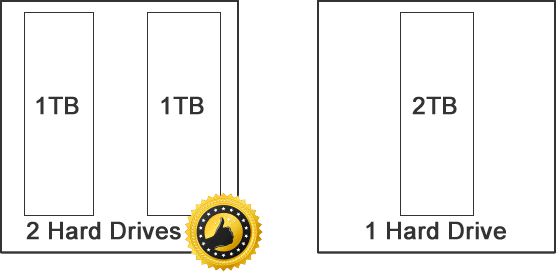
In general, if you are using RAIZ1, the more disk you have, the better the overall performance. Imagine we have two different setups: One with many disks, and another one with few disks. Assuming the disk are standard consumer grade SATA HDD disk (i.e., the maximum achievable speed is around 100MB/s). Let’s say we need to calculate a checksum of a large file (e.g., 10GB). Here are the steps:
- CPU tells the ZFS to get the file
- The ZFS gets the file from each disk.
- Each disk is looking for the file:
- Setup #1: It has many disks. Each disk contains a small part of the file. It takes shorter time to return the file to the CPU.
- Setup #2: It has fewer disks. Each disk contains a larger part of the file. It takes longer time to return the file to the CPU.
- The CPU joins the pieces together and calculates the checksum.
As you can tell, the bottleneck of such simple operation is not the CPU, but retrieving the file. The maximum speed of standard HDD is around 100MB/s. So the more disks you have, the faster the I/O. This is the reason why we need to rebalance the ZFS every once a while, because we want to keep the data distributed evenly across all disks.
Here is a quick comparison. I had two servers available. Both had exact the same software installed (same OS/ZFS/DKMS/kernel). One had a slower CPU and one had a faster CPU. The main difference was the ZFS setup. I performed MD5 checksum on 10 files (these files are available on both systems. The total size is 70GB). They were not in the memory cache before running the checksum. Here is the result:
Setup #1: Slower CPU (4th generation i7) + ZFS with more disks.
CPU: Intel(R) Core(TM) i7-4770 CPU @ 3.40GHz
Memory: 32GB
OS: CentOS 7
ZFS Setup: 16 HDDs: RAIDZ1 (8 HDDs) + RAIDZ1 (8 HDDs), no cache/log.

time md5sum *
real    2m47.139s
user    1m58.631s
sys     0m31.239s
Setup #2: Faster CPU  (8th generation i7) + ZFS with fewer disks.
CPU: Intel(R) Core(TM) i7-8700 CPU @ 3.20GHz
Memory: 32GB
OS: CentOS 7
ZFS Setup: 3 HDDs: RAIDZ1 (3 HDDs), no cache/log.

time md5sum *
real    6m40.768s
user    3m18.477s
sys     0m33.790s
As you can tell, a good ZFS design makes a big difference. The first setup leaves the second one in dust (2.38x faster) even it has a slower CPU (4th generation i7 vs. 8th generation i7).
Improve ZFS Performance: Step 10
Use a combination of Striped and RAIDZ if speed is your first concern.
Striped design also gives the best performance. Since it offers no data protection at all, you may want to use RAIDZ (RAIDZ1, RAIDZ2, RAIDZ3) or mirror to handle the data protection. However, there are too many choices and each of them offer different degree of performance and protection level. If you want a quick answer, try to use a combination of striped and RAIDZ. I posted a very detail of comparison among Mirror, RAIDZ, RAIDZ2, RAIDZ3 and Striped here.
Here is an example of striped with RAIDZ:
#Command
zpool create -f myzpool raidz hd1 hd2 hd3 hd4 hd5 \
                        raidz hd6 hd7 hd8 hd9 hd10

#zpool status -v
        NAME        STATE     READ WRITE CKSUM
        storage     ONLINE       0     0     0
          raidz1-0  ONLINE       0     0     0
            hd1     ONLINE       0     0     0
            hd2     ONLINE       0     0     0
            hd3     ONLINE       0     0     0
            hd4     ONLINE       0     0     0
            hd5     ONLINE       0     0     0
          raidz1-1  ONLINE       0     0     0
            hd6     ONLINE       0     0     0
            hd7     ONLINE       0     0     0
            hd8     ONLINE       0     0     0
            hd9     ONLINE       0     0     0
            hd10    ONLINE       0     0     0
Improve ZFS Performance: Step 11
Distribute your free space evenly (How to rebalance ZFS)
One of the important tricks to improve ZFS performance is to keep the free space evenly distributed across all devices.
Technically, if the structure of a zpool has not been modified or alternated, you should not need to worry about the data distribution because ZFS takes care of that for you automatically. However, when you add new devices to an existing zpool, that will be a different story.
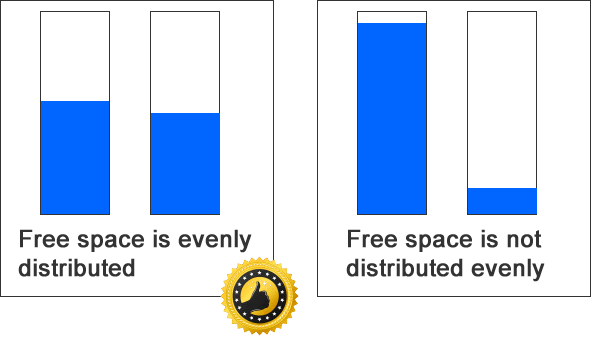
The following example was retrieved from one of my newly created system. I first created a pool and filled with data first (first group with 93% full). Later I added another vdev (second group). As you can see, the first group of disks is 93% full, and the second group of disks are only 0.2% full. Keep in mind that this number shows the capacity at the vdev level. In the other words, these numbers may not add up to 100. A perfectly distributed pool may have 80%/80% in two vdevs.
zpool list -v
#This is a wide table. You may need to scroll to the right.

NAME                                     SIZE  ALLOC   FREE  CKPOINT  EXPANDSZ   FRAG    CAP  DEDUP    HEALTH  ALTROOT
storage                                  138T  95.2T  43.1T          -         -     0%    68%  1.00x    ONLINE  -
  raidz1                                 102T  95.1T  6.77T          -         -     1%  93.3%      -  ONLINE
  raidz1                                36.4T  78.0G  36.3T          -         -     0%  0.20%      -  ONLINE
So what is the problem here? When ZFS retrieves the old data (data that was stored before adding the second vdev), the data is retrieved from the first vdev. When ZFS adding new data, the data will be stored in the second vdev (because the first vdev is almost full). ZFS won’t be able to fix this problem until some old data is deleted from the first vdev to free up the space. Otherwise ZFS will keep using the second vdev. For performance reason, we want ZFS to store the data across all vdevs instead of just one or two vdev. We want all harddrives to work together rather than some harddrives are working hard while the rest of the harddrives are doing nothing. In the other words, the more devices ZFS writes, the better the performance.
There are two ways to rebalance your ZFS data distribution.
1. Back up your data
2. Destroy the pool
3. Rebuild the pool
4. Put your data back
or
1. Copy your folder
2. Delete your original folder
3. Rename your folder back to the original name
The first method is the best because ZFS will balance the data completely. Depending on how much data do you have, it may take days to weeks to copy your data from one server to another server over a gigabit network (8.64TB per day, assuming the average network transfer speed is 100MB/s). You don’t want to use scp to do it because you will need to re-do everything again if the process is dropped. In my case, I use rsync:
(One single line)
#Run this command on the production server:
rsync -avzr --delete-before backup_server:/path_to_zpool_in_backup_server/ /path_to_zpool_in_production_server/
Of course, netcat is a faster way if you don’t care about the security. (scp / rsync will encrypt the data during transfer).
See here for further information
The second method offers great flexibility because it doesn’t require another server. It can be performed at any time as long as you have enough free space available. However it will take longer time and the result won’t be as good as the first one. Here is an example:
rsync -avr my_folder/ my_folder_copied/
rm -Rf my_folder/
mv my_folder_copied my_folder
Let’s me give you an example. Suppose we have two vdevs. Both of them are 100TB. We started with the vdev#1 first, fill it with data and we added vdev#2 later.
| Event | vdev#1 | vdev#2 |
| Original (TB) | ||
| Free Space (TB) | 10 | 90 |
| Used Space (TB) | 90 | 10 |
| After copying 10TB data | 5 | 5 |
| Free Space (TB) | 5 | 85 |
| Used Space (TB) | 95 | 15 |
| After deleting the original 10TB data | 10 | 0 |
| Free Space (TB) | 15 | 85 |
| Used Space (TB) | 85 | 15 |
As you can see, the capacity of used space changes from 90%/10% to 85%/15% after these operations. It will take several trials to make these two numbers the same.
Keep in mind that when you clone the data, you need to make sure that the vdev1 (the old vdev) has enough free space to store the data (ZFS always splits the data evenly and stores them in all vdevs). Otherwise the cloned data will be written in vdev2, which is not what we want.
FYI, this is what I have after copying and deleting multiple large folders, one at a time. The capacities of both vdev had improved from from 93%/0% to 72%/60%.
#Original:
#Group 1 capacity was 93%
#Group 2 capacity was 0%
NAME                                     SIZE  ALLOC   FREE  CKPOINT  EXPANDSZ   FRAG    CAP  DEDUP    HEALTH  ALTROOT
storage                                  138T  95.2T  43.1T          -         -     0%    68%  1.00x    ONLINE  -
  raidz1                                 102T  95.1T  6.77T          -         -     1%  93.3%      -  ONLINE
  raidz1                                36.4T  78.0G  36.3T          -         -     0%  0.20%      -  ONLINE
#After copying and deleting all larger folders one at a time
#Group 1 capacity becomes 72%
#Group 2 capacity becomes 60%
NAME                                     SIZE  ALLOC   FREE  CKPOINT  EXPANDSZ   FRAG    CAP  DEDUP    HEALTH  ALTROOT
storage                                  138T  94.8T  43.5T        -         -     0%    68%  1.00x    ONLINE  -
  raidz1                                 102T  73.1T  28.8T        -         -     0%  71.8%      -  ONLINE
  raidz1                                36.4T  21.7T  14.7T        -         -     0%  59.6%      -  ONLINE
Improve ZFS Performance: Step 12
Make your pool expandable
Setting up a ZFS system is more than a one-time job. Unless you take a very good care of your storage like how supermodels monitor their body weights, otherwise you will end up using all of the available space one day. Therefore, it is a good idea to come up a good design that it can grow in the future.
Suppose we want to build a server with maximum storage capacity, how will we start? Typically we try to put as many hard drives on a single machine as possible, i.e., it will be around 12 to 14 hard drives, which is what a typical consumer grade full tower computer case can hold. Let’s say we have 12 disks, here are couple setups which maximize storage capacity with a decent level of data safety:
Design #1: RAIDZ2

In this design, we create a giant pool and let the ZFS to take care of the rest. This pool will offer n-2 storage capacity which will allow up to 2 hard drives fail without losing any data.
Design #2: RAIDZ1 + RAIDZ1

In the second design, it offers the same level of storage capacity and a similar level of data protection. It allows up to one failure disk in each vdev. Keep in mind that the first design offers a great data protection. However, the second design will offer a better performance and greater flexibility in terms of future upgrade. Check out this article if you want to learn more about the difference in ZFS design.
First, let’s talk about the good and bad of the first design. It offers a great data security because it allows ANY two disks in the zpool to fail. However, it has couple disadvantages. ZFS works great when the number of disk of vdev is small. Ideally, the number should be smaller than 8 (Personally, I will stick with 5). In the first design, we put 12 disks in one single vdev, which will be problematic when the storage is getting full (>90%). Also, when we talk about upgrading the entire zpool, we will need to upgrade each disk one by one first. We won’t be able to use the extra space until we replace all 12 disks. This may be an issue for those who do not have budget to get 12 new disks at a time.
For the second design, it does not have the problem mentioned in the first design. The number of disk in each vdev is small (6 disks in each vdev). For those who don’t have plenty of budgets, it is okay to get six disks at a time to expand the pool.
Here is how to create the second design:
sudo zpool create myzpoolname raidz /dev/ada1 /dev/ada2 ... /dev/ada6 raidz /dev/ada7 /dev/ada8 /dev/ada9 ... /dev/ada12
Here is how to expand the pool by replacing the hard drive one by one without losing any data:
1. Shutdown the computer, replace the hard drive and turn on the computer.

2. Tell ZFS to replace the hard drive. This will force it to fill in the new hard drive with the existing data based on the check sum.
zpool replace mypool /dev/ada1

3. Resilver the pool
zpool scrub mypool

4 Shutdown the server and replace the second ard drive again. Repeat the steps until everything is done.

5. zpool set autoexpand=on mypool

6. Resilve the pool if needed.
zpool scrub mypool
Improve ZFS Performance: Step 13
Backup your data on a different machine, not on the same pool
ZFS comes with a very cool feature. It allows you to save multiple copies of the same data in the same pool. This adds an additional layer on data security. However, I don’t recommend using this feature for backup purpose because it adds more work when writing the data to the disks. Also, I don’t think this is a good way to secure the data. I prefer to set up a mirror on a different server (Master-Slave). Since the chance of two machines fail at the same time is much smaller than one machine fails. Therefore, the data is safer in this settings.
Here is how I synchronize two machines together:
(Check out this guide on how to use rsyncd)
Create a script in the slave machine: getContentFromMaster.sh
(One single line)
rsync -avzr -e ssh --delete-before master:/path/to/zpool/in/master/machine /path/to/zpool/in/slave/machine
And put this file in a cronjob, i.e.,
/etc/crontab
@daily root /path/to/getContentFromMaster.sh
Now, you may ask a question. Should I go with strip-only ZFS (i.e., stripping only. No mirror, RAIDZ, RAIDZ2) when I set up my pool? Yes or no. ZFS allows you to mix any size of hard drive in one single pool. Unlike RAID[0,1,5,10] and concatenation, it can be any size and there is no lost in the disk space, i.e., you can connect 1TB, 2TB, 3TB into one single pool while enjoying the data-stripping (Total usable space = 6TB). It is fast (because there is no overhead such as parity etc) and simple. The only down side is that the entire pool will stop working if at least one device fails.
Let’s come back to the question, should we employ simple stripping in production environment? I prefer not. Strip-only ZFS divides all data into all vdev. If each vdev is simply a hard drive, and if one fails, there is NO WAY to get the original data back. If something screws up in the master machine, the only way is to destroy and rebuild the pool, and restore the data from the backup. (This process can takes hours to days if you have large amount of data, say 6TB.) Therefore, I strongly recommend to use at least RAIDZ in the production environment. If one device fails, the pool will keep working and no data is lost. Simply replace the bad hard drive with a good one and everything is good to go.
To minimize the downtime when something goes wrong, go with at least RAIDZ in a production environment (ideally, RAIDZ or strip-mirror).
For the backup machine, I think using simple stripping is completely fine.
Here is how to build a pool with simple stripping, i.e., no parity, mirror or anything
zpool create mypool /dev/dev1 /dev/dev2 /dev/dev3
And here is how to monitor the health
zpool status
Some websites suggest to use the following command instead:
zpool status -x
Don’t believe it! This command will return “all pools are healthy” even if one device is failed in a RAIDZ pool. In the other words, your data is healthy doesn’t mean all devices in your pool are healthy. So go with “zpool status” at any time.
FYI, it can easily takes few days to copy 10TB of data from one machine to another through a gigabit network. In case you need to restore large amount of data through the network, use rsync, not scp. I found that scp sometimes fail in the middle of transfer. Using rsync allows me to resume it at any time.
Improve ZFS Performance: Step 14
rsync or ZFS send?
So what’s the main difference between rsync and ZFS send? What’s the advantage of one over the other?
Rsync is a file level synchronization tool. It simply goes through the source, find out which files have been changed, and copy the corresponding files to the destination. Also rsync is portable and cross-platform. Unlike ZFS, rsync is available in most Unix platforms. If your backup platform does not support ZFS, you may want to go with rsync.
ZFS send is doing something similar. First, it takes a snapshot on the ZFS pool first:
zfs snapshot mypool/vdev@20120417
After that, you can generate a file that contains the pool and data information, copy to the new server to restore it:
#Method 1: Generate a file first
zfs send mypool/vdev@20120417 > myZFSfile
scp myZFSfile backupServer:~/
zfs receive mypool/vdev@20120417 < ~/myZFSfile
Or you can do everything in one single command line:
#Method 2: Do everything over the pipe (One command)
zfs send mypool/vdev@20120417 | ssh backupServer zfs receive mypool/vdev@20120417
In general, the preparation time of ZFS send is much shorter than rsync, because ZFS already knows which files have been modified. Unlike rsync, a file-level tool, ZFS send does not need to go through the entire pool and find out such information. In terms of the transfer speed, both of them are similar.
So why do I prefer rsync over ZFS send (both methods)? It’s because the latter one is not practical! In method #1, the obvious issue is the storage space. Since it requires generating a file that contains your entire pool information. For example, suppose your pool is 10TB, and you have 8TB of data (i.e., 2TB of free space), if you go with method #1, you will need another 8TB of free space to store the file. In the other words, you will need to make sure that at least 50% of free space is available all the time. This is a quite expensive way to run ZFS.
What about method #2? Yes, it does not have the storage problem because it copies everything over the pipe line. However, what if the process is interrupted? It is a common thing due to high traffic in the network, high I/O to the disk etc. Worst worst case, you will need to re-do everything again, say, copying 8TB over the network, again.
rsync does not have these two problems. In rsync, it uses relatively small space for temporary storage, and in case the rsync process is interrupted, you can easily resume the process without copying everything again.
Improve ZFS Performance: Step 15
Disable dedup if you don’t have enough memory (5GB memory per 1TB storage)
Deduplication (dedup) is a space-saving technology. It works at the block level (a file can have many blocks). To explain it in simple English, if you have multiple copies of the same file in different places, it will store only one copy instead of multiple copies. Notice that dedup is not the same as compression. Check out this article: ZFS: Compression VS Deduplication(Dedup) in Simple English if you wan to learn more.
The idea of dedup is very simple. ZFS maintains an index of your files. Before writing any incoming files to the pool, it checks whether the storage has a copy of this file or not. If the file already exists, it will skip the file. With dedup enabled, instead of store 10 identical files, it stores one only copy. Unfortunately, the drawback is that it needs to check every incoming file before making any decision.
After upgrading my ZFS pool to version 28, I enabled dedup for testing. I found that it really caused huge performance hit. The writing speed over the network dropped from 80MB/s to 5MB/s!!! After disabling this feature, the speed goes up again.
sudo zfs set dedup=off your-zpool
In general, dedup is an expensive feature that requires a lot of hardware resources. You will need 5GB memory per 1TB of storage (Source). For example, if zpool is 10TB, I will need 50GB of memory! (Which I only have 12GB). Therefore, think twice before enabling dedup!
Notice that it won’t solve all the performance problem by disabling the dedup. For example, if you enable dedup before and disable it afterward, all files stored during this period are dedup dependent, even dedup is disabled. When you need to update these files (e.g., delete), the system still needs to check again the dedup index before any processing your file. Therefore, the performance issue still exists when working with these affected files. For the new files, it should be okay. Unfortunately, there is no way to find out the affected dedup files. The only way is to destroy and re-build the ZFS pool, which will clear the list of dedup files.
Improve ZFS Performance: Step 16
Reinstall Your Old System
Sometimes, reinstalling your old system from scratch may help to improve the performance. Recently, I decided to reinstall my FreeBSD box. It was an old FreeBSD box that was started with FreeBSD 6 (released in 2005, about 8 years ago from today). Although I upgraded the system every release, it already accumulated many junk and unused files. So I decide to reinstall the system from scratch. After the installation, I can tell that the system is more responsive and stable.
Before you wipe out the system, you can export the ZFS tank using the following command:
sudo zpool export mypool
After the work is done, you can import the data back:
sudo zpool import mypool
Improve ZFS Performance: Step 17
Connect your disks via high speed interface
Recently, I found that my overall ZFS system is slow no matter what I have done. After some investigations, I noticed that the bottle neck was my RAID card. Here are my suggestions:
1. Connect your disks to the ports with highest speed. For example, my PCI-e RAID card deliveries higher speed than my PCI RAID card. One way to verify the speed is by using dmesg, e.g.,
dmesg | grep MB

#Connected via PCI card. Speed is 1.5Gb/s
ad4: 953869MB  at ata2-master UDMA100 SATA 1.5Gb/s

#Connected via PCI-e card. Speed is 3.0 Gb/s
ad12: 953869MB  at ata6-master UDMA100 SATA 3Gb/s
In this case, the overall speed limit is based on the slowest one (1.5Gb/s), even the rest of my disks are 3Gb/s.
2. Some RAID cards come with some advanced features such as RAID, linear RAID, compression etc. Make sure that you disable these features first. You want to minimize the workload of the card and maximize the I/O speed. It will only slow down the overall process if you enable these additional features. You can disable the settings in the BIOS of the card. FYI, most of the RAID cards in $100 ranges are “software RAID”, i.e., they are using the system CPU to do the work. Personally, I think these fancy features are designed for Windows users. You really don’t need any of these features in Unix world.
3. Personally, I recommend any brand except Highpoint Rocketraid because of the driver issues. Some of the Highpoint Rocketraid products are not supported by FreeBSD natively. You will need to download the driver from their website first. Their driver is version-specified, e.g., they have two different set of drivers for FreeBSD 7 and 8, and both of them are not compatible with each other. One day if they decide to stop supporting the device, then you either need to stick with the old FreeBSD, or buy a new card. My conclusion: Stay away from Highpoint Rocketraid.
Improve ZFS Performance: Step 18
Do not use up all spaces
Depending on the settings / history of your zpool, you may want to maintain the free space at a certain level to avoid speed-drop issues.
Recently, I found that my ZFS system is very slow in terms of reading and writing. The speed dropped from 60MB/s to 5MB/s over the network. After some investigations, I found that the available space was around 300GB (out of 10TB), which is 3% left. Someone suggest that the safe threshold is about 10%, i.e., the performance won’t be impacted if you have at least 10% of the free space. I would say 5% is the bottom line, because I haven’t noticed any performance issues until it hits 3%.
After I free up some spaces, the speed comes back again.
I think it doesn’t make any sense not to use all of my space. So I decide to find out what caused this problem. The answer is the zpool structure.
In my old setup, I put set up a single RAIDZ vdev with 8 disks. This gives me basic data security (up to one disk fails), and maximum disk spaces (Usable space is 7 disks). However, I notice that the speed drops a lot when the available free space was 5%.
In my experiment setup, I decide to do the same thing with RAIZ2, i.e., it allows up to two disks fail, and the usable space is down to 6 disks. After filling up the pool, I found that it does not have the speed-drop problem. The I/O speed is still fast even the free space is 10GB (That’s 0.09%).
My conclusion: RAIDZ is okay up to 6 devices. If you want to add more devices, either use RAIDZ2 or split them into multiple vdevs:
#Suppose I have 8 disks (/dev/hd1 ... /dev/hd8).

#One vdev
zpool create myzpool raidz2 /dev/hd1 /dev/hd2 ... /dev/hd8

#Two vdevs
zpool create myzpool raidz /dev/hd1 ... /dev/hd4 raidz /dev/hd5 ... /dev/hd8
Improve ZFS Performance: Step 19
Use AHCI, Not IDE
Typically, there is a setting to control how the motherboard interacts with the hard drives: IDE or AHCI. If your motherboard has IDE ports (or manufactured before 2009), it is likely that the default value is set to IDE. Try to change to AHCI. Believe me, this litter tweak can save you countless of hours on debugging.
FYI, here is my whole story.
Improve ZFS Performance: Step 20
Refresh your pool
I had set up my zpool for five years. Over the past five years, I had performed lots of upgrade and changed a lot of settings. For example, during the initial set up, I didn’t enable the compression. Later, I set the compression to lzjb and changed it to lz4. I also enabled and disabled the dedup. So you can imagine some part of the data is compressed using lzjb, some data has dedup enabled. In short, the data in my zpool has all kind of different settings. That’s dirty.
The only thing I can clean up is to destroy the entire zpool and rebuild the whole thing. Depending on the size of your data, it can take 2-3 days to transfer 10TB of data from one to another server, i.e., 4-6 days round trip. However, you will see the performance gain in long run.
Keep in mind that this step is completely optional, and it all depends on your current ZFS pool status. I have a ZFS server running on professional hardware for over 10 years, high I/O traffic every day, with over 50TB of data, and it is still running strong.
Improve ZFS Performance: Step 21
Great performance settings
The following settings will greatly improve the performance of your ZFS pool. However, each of them comes with a price tag. Its like removing the air bag from your car. Yes, it will save few pounds here and few pounds there. However, when something goes wrong, it could be a nightmare. Do it at your own risk.
Disable the sync option
sudo zfs set sync=disabled mypool
From the man page:
“File system transactions are only committed to stable storage periodically. This option will give the highest performance. However, it is very dangerous as ZFS would be ignoring the synchronous transaction demands of applications such as databases or NFS. Administrators should only use this option when the risks are understood.”
Keep in mind that disabling the sysnc options will force the synchronous writes to be treated as asynchronous writes, i.e., this will eliminating any double write penality (e.g., ZIL). In the other words, if you have ZIL (ZFS logs device), you are virtually by passing it.
Disable the checksum
sudo zfs set checksum=off mypool
Disabling the checksum is like removing air bag from your car. Most people don’t do it but some people do for their own reason (e.g., Formula 1). It will save some CPU computation time, but won’t be a lot for each operation. However if you have a lot of data to write to the pool, saving a little bit in every write operation will end up a lot. There is only a catch: your data is not important and you don’t care the data integrity. For example, I do a lot of genomic analyses. Each analysis is lengthy (may last several days) and it generate lots of temporary files (e.g., output logs). Since those files are not important information in my case, I store them in a compressed, checksum disabled zpool partition to speed up the write process. Long story short. If you care your data, enable the checksum. If you don’t, disable it.
Disable the access time
sudo zfs set atime=off mypool
From the man page:
“Turning this property off avoids producing write traffic when reading files and can result in significant performance gains, though it might confuse mailers and other similar utilities.”
Customize the record size
The default record size of ZFS is 128k, meaning that ZFS will write 128k of data to a logical block. Imagine if there is only few changes in a block, what ZFS will do is to read the whole chunk, make the changes, and write the changes back to the disk (plus other overhead such as compression, checksum etc). Most database program prefers smaller size. This magic number is different for different types of engine.
#For MySQL MyISAM Engines
sudo zfs create -o recordsize=8k mypool/mysql_myisam

#For MySQL InnoDB
sudo zfs create -o recordsize=16k mypool/mysql_innodb
To keep things simple, I create symplic links within the MySQL folder and link to the right place, e.g.,
#ls -al /var/lib/mysql
lrwxrwxrwx   1 root  root    36 Oct 17  2019 database1-> /mypool/mysql_myisam/database1/
lrwxrwxrwx   1 root  root    36 Oct 17  2019 database2-> /mypool/mysql_innodb/database2/
Since ZFS caches the data in RAM, it may be wise to increase the amount of reserved memory for ZFS, and reduce the memory used by the database program. This will avoid the double caching, which is a waste. Plus ZFS does a way better job in terms of using memory, e.g., it compresses the data using lz4 on the fly, which not all databases do it.
Similarly, you can do the same thing for virtual machine images or other applications that write a lot of small changes to large files:
sudo zfs create -o recordsize=16k mypool/vm
Redundant Metadata
Set the redundant_metadata to most will improve the performance of random writes. The default value of redundant_metadata is all.
sudo zfs set redundant_metadata=most mypool
Enable the system attribute based xattrs
Storing xattrs as system attributes significantly decreases the amount of disk I/O. (Not available on FreeBSD)
sudo zfs set xattr=sa mypool
Improve ZFS Performance: Step 22
My Settings – Simple and Clean
I have set up over 50 servers based on ZFS. They all have different purposes. In general, they all share the same ZFS settings, and they can reach the hardware limit, e.g., ARC cache uses about 90% of the system memory, the network transfer speed maxes out the limit of the network card etc.
sudo zpool history

#I like to use raidz, and each raidz vdev contains no more than 5 disks.
zpool create -f storage raidz /dev/hd1 /dev/hd2 ... raidz /dev/hd6 /dev/hd7 ... raidz /dev/hd11 /dev/hd12

#A partition for general purposes
zfs create storage/data

#A partition for general web
zfs create storage/web

#A partition for MySQL / MYISAM tables
zfs create -o recordsize=8k storage/mysql (MYISAM tables)

#Some common settings
zfs set compression=lz4 storage
zfs set atime=off storage
zfs set redundant_metadata=most storage

#For Linux server
zfs set xattr=sa storage
A simple nload when running rsync over a gigabit LAN:
(Bonding mode: 6, based on two gigabit network cards)
#nload -u M

Outgoing:
Curr: 209.48 MByte/s
Avg: 207.50 MByte/s
Min: 198.66 MByte/s
Max: 209.53 MByte/s
Ttl: 3755.46 GByte
I only uses two operating systems:
#Personal
FreeBSD 10.3-RELEASE-p11 FreeBSD 10.3-RELEASE-p11 #0: Mon Oct 24 18:49:24 UTC 2016     [email protected]:/usr/obj/usr/src/sys/GENERIC  amd64


#Work
CentOS Linux release 7.3.1611 (Core)
Linux 3.10.0-514.6.1.el7.x86_64 #1 SMP Wed Jan 18 13:06:36 UTC 2017 x86_64 x86_64 x86_64 GNU/Linux
Most of the hard drives I use are consumer-grade. Typically, I buy the external one and remove the hard drive from the enclosure because of the lower cost. Sometimes when I need to use all of the SATA ports, I will use USB flash drive for the operating system (I have some older machines with USB 2.0 port only). As long as all of the frequently used files are in the ZFS pool, the performance is not a problem. Another thing you can is to install card size SSD drive on the mSATA port, and connect a regular hard drive to the eSATA port on the back of the motherboard using a long eSATA-SATA cable. That will help to maximize the number of hard drives. Most computer cases will fit 10-12 3.5″ hard drives, some of them (e.g., Rosewill RSV-R4000) can hold 15 3.5″ hard drives for under USD 100. Personally I was able to hold 18 3.5″ hard drives using Rosewill RSV-R4000 with some modifications, plus 3 2.5″ hard drives. The most powerful one will fit 18 hard drives with a price tag of USD 200.
The amount of the memory is going to be tricky, as it depends on what applications you want to run on your server and how much memory will be consumed by the service. It also depends on how large is your ZFS pool capacity. Here are some of the servers I have set up:
#A light weight web (Apache+MySQL+PHP), and file server (Samba)
CPU: Intel(R) Xeon(R) CPU E5-2440 v2 @ 1.90GHz (A mid-level server grade CPU from 2014)
Memory: 4GB
ZFS Pool Capacity: 1.6TB
OS: CentOS 7
Kernel: 3.10.0-514.6.1.el7.x86_64 #1 SMP Wed Jan 18 13:06:36 UTC 2017 x86_64 x86_64 x86_64 GNU/Linux


#A server for nightly backup
CPU: Intel(R) Core(TM) i7 CPU K 875  @ 2.93GHz (A gaming-grade CPU from 2010)
Memory: 8GB
ZFS Pool Capacity: 43TB
OS: CentOS 7
Kernel: 3.10.0-514.6.1.el7.x86_64 #1 SMP Wed Jan 18 13:06:36 UTC 2017 x86_64 x86_64 x86_64 GNU/Linux


#A server for analyzing genomic data, with a very high CPU usage
CPU: Intel(R) Core(TM) i7-6700 CPU @ 3.40GHz (A gaming-grade CPU from 2015)
Memory: 64GB
ZFS Pool Capacity: 8.5TB
OS: CentOS 7
Kernel: 3.10.0-514.6.1.el7.x86_64 #1 SMP Wed Jan 18 13:06:36 UTC 2017 x86_64 x86_64 x86_64 GNU/Linux


#A heavy weight network file server
CPU: Intel(R) Xeon(R) CPU E5-2430 0 @ 2.20GHz (A mid-level server grade CPU from 2012)
Memory: 96GB
ZFS Pool Capacity: 53TB
OS: CentOS 7
Kernel: 3.10.0-514.6.1.el7.x86_64 #1 SMP Wed Jan 18 13:06:36 UTC 2017 x86_64 x86_64 x86_64 GNU/Linux


#A heavy weight web server
CPU: Intel(R) Xeon(R) CPU E3-1225 v3 @ 3.20GHz (An entry-level server grade CPU from 2013)
Memory: 16GB
ZFS Pool Capacity: 1.8TB
OS: CentOS 7
Kernel: 3.10.0-514.6.1.el7.x86_64 #1 SMP Wed Jan 18 13:06:36 UTC 2017 x86_64 x86_64 x86_64 GNU/Linux


#A light weight web (Apache+MySQL+PHP), and file server (Samba)
CPU: Intel(R) Core(TM) i7 CPU 920  @ 2.67GHz  (A gaming-grade CPU from 2008)
Memory: 24GB
ZFS Pool Capacity: 25TB
OS: FreeBSD 10.3
Kernel: FreeBSD 10.3-RELEASE-p11 FreeBSD 10.3-RELEASE-p11 #0: Mon Oct 24 18:49:24 UTC 2016     [email protected]:/usr/obj/usr/src/sys/GENERIC  amd64


#A low-end backup server
CPU: Intel(R) Core(TM)2 Quad CPU Q6600 @ 2.40GHz (An entry-level CPU from 2007)
Memory: 8GB
ZFS Pool Capacity: 15TB
OS: FreeBSD 10.3
Kernel: FreeBSD 10.3-RELEASE-p11 FreeBSD 10.3-RELEASE-p11 #0: Mon Oct 24 18:49:24 UTC 2016     [email protected]:/usr/obj/usr/src/sys/GENERIC  amd64
If you are interested in implementing network-based ZFS, please check here for details.
Enjoy ZFS.
–Derrick
Our sponsors:

“Use disks with the same specifications”.
“For example, if you are mixing a slower disk (e.g., 5900 rpm) and a faster disk(7200 rpm) in the same ZFS pool, the overall speed will depend on the slowest disk. ”
It is not true. You can mix different sizes and speeds of devices as top-level devices. ZFS will dynamically redistributed write bandwidth according to estimated speed and latency.
You hower should not mix different sizes and speeds in single vdev, like mirror or raidz2. For example in mirror, zfs will wait for both devices to complete write. In theory it could wait just for one of them (at least when not using O_DIRECT or O_SYNC or fsync, etc.), but this can be pretty nasty when doing recovery after one of the devices fails.
Hi Witek,
Thanks for your comment. What I was talking about was the 512 / 4k sector issue that yields performance penalty. For example, if I mixed harddrive with 512 sector and 4k sectors together, ZFS will try to run all disks with 512 sector, which will gives performance penalty.
–Derrick
You said : “Use Mirror, not RAIDZ if speed is your first concern.”
But RaidZ in vdev as :
vdev1: RAID-Z2 of 6 disks
vdev2: RAID-Z2 of 6 disks
could provide speed and security ?
Hi ST3F,
No, I don’t think so. RAIDZ or RAIDZ2 is definitely slower than pure striping, i.e.,
zpool create mypool disk1 disk2 disk3 disk4 disk5 disk6
And I think this will be faster:
zpool create mypool mirror disk1 disk2 mirror disk3 disk4 mirror disk5 disk6
Of course, the trade off for the speed is losing disk space.
So instead of buying/building expensive server (ECC memory, Xeon and so on) the better, cheaper and more reliable alternative is to buy two (or even more) customers-grade computers and do syncronization between it.
Yes. All members in my data server farm are consumer level computers (e.g., i7, Quad-Core, dual-core with non-ECC memory and consumer level hard drives). So far the reliability is pretty good. Actually, the gaming PC has a very high reliability, because they need to operate at high temperature. Using a gaming quality computer for data server is a good choice.
Hi Derrick,
You have written a very good article for ZFS beginners, but I would like to comment on some of the claims.
“Since it is impossible to remove the log devices without losing the data.”, that is incorrect. All writes are first written to the ARC (which unlike the L2ARC is not only a read cache), and if ZIL/log is enabled the write is then written to that device, and when confirmed written it’ll acknowledge back to the client. In case the ZIL dies, no data is lost, unless the machine looses it’s power. What will happen however is that the writes will become as slow as the spindles are just as if you had no ZIL/log device, but you will not loose any data.
That is how I understand it after lurking around and reading about ZFS for a few days.
I would also recommend to use zfs send instead of rsync to achieve asynchronous replication – this is the preferred method.
Hi Mattias,
Thanks for catching that. While I wrote this article, ZFS log device removal was not available yet. (I was referencing v. 15, and this feature was introduced in v. 19).
I just put a new section to talk about rsync vs zfs send.
Thank again for your comment!
–Derrick
Hi,
I tested dd+zero on my FreeBSD 9.0-RELEASE , sadly the speed is very slow, only 35MB/s and the disk is keep writing while dd. maybe you disabled ZIL?
[root@H2 /z]# zfs get compression z/compress
NAME PROPERTY VALUE SOURCE
z/compress compression on local
[root@H2 /z]# dd if=/dev/zero of=/z/compress/0000 bs=1m count=1k
1024+0 records in
1024+0 records out
1073741824 bytes transferred in 30.203237 secs (35550554 bytes/sec)
[root@H2 /z]# du -s /z/compress/
13 /z/compress/
[root@H2 /z]# zpool status
pool: z
state: ONLINE
scan: scrub canceled on Fri Apr 13 17:06:34 2012
config:
NAME STATE READ WRITE CKSUM
z ONLINE 0 0 0
raidz1-0 ONLINE 0 0 0
ada1 ONLINE 0 0 0
ada2 ONLINE 0 0 0
ada3 ONLINE 0 0 0
ada4 ONLINE 0 0 0
logs
ada0p4 ONLINE 0 0 0
cache
da0 ONLINE 0 0 0
da1 ONLINE 0 0 0
———————
ada1-ada4 are 2TB SATA disks, ada0p4 is ZIL on Intel SSD, da0 & da1 are USB sticks.
Hi Bob,
I will try to remove the log and cache devices first. If the speed is good, then the problem is either on the log or cache, otherwise something is not right to your main storage.
–Derrick
Pingback: FreeBSD « blog.mergele.org
Pingback: How to improve ZFS performance « The truth is in here
Hello,
You write in #12, rsync or zfs send, about the problem of interruption of the pipeline when doing zfs send/receive to a remote site.
However, that presumes you are doing a FULL sent every time.
If instead, you do frequent incrementals (after a first time initial looong sync, this is true), then you almost eliminate this problem.
I wrote “zrep” to solve this problem.
http://freecode.com/projects/zrep
It is primarily developed on Solaris: However,it should be functional on freebsd as well, I think.
Hi my friend! I want to say that this article is amazing, nice written and come with approximately all vital infos. I would like to peer more posts like this.
Pingback: ZFS Stammtisch - Seite 87
Gorgeous.
For a rookie sysadmin like me this tutorial is simply awesome, thank you very much for sharing your experiences =)
I really enjoy reading your website. There is one thing I don’t understand. I think that you have a lot of visitors daily but why your website is loading so fast? My website is loading very slowly! What kind of hosting you are using? I heard hostgator is good but its price is quite steep for me. Thanks in advance.
I run my own server because I had a very bad experience with my former web hosting company (ICDSoft.com), and I am using FreeBSD. It offers much better performance than other operating systems like Windows and Linux.
–Derrick
Disabling checksums is a terribly bad idea. If you do that, then you cannot reliably recover data using the RAID reconstruction techniques… you can only hope that it works, but will never actually know. In other words, the data protection becomes no better than that provided by LVM. For the ZFS community, or anyone who values their data, disabling checksums is bad advice. The imperceptible increase in performance is of no use when your data is lost.
$ dd if=/dev/zero of=./file.out bs=1M count=10k
10240+0 records in
10240+0 records out
10737418240 bytes (11 GB) copied, 130.8 s, 82.1 MB/s
that’s even much slower… it is on a single core AMD with 8GB of RAM. but I doubt the CPU is the only cause?
the system runs on a SSD drive (Solaris 11 Express)
and my main pool is a raidz on 4 Hitachi harddrives.
your tips don’t give me that much options. #1 will remain the same for now. #2 is FreeBSD related. #3 I’m compliant. #4 not enabled, so compliant again. #5 disabling checksum is not recommended from the ZFS Evil Tunning guide. I disabled atime though, hopefully this will help.
#6, I am at version 31, much higher than 14,15…. I could try upgrading to 33….
#7 I will consider it, I thought adding a log/caching device was adding permanent dependency on my pool. but seems like they can be removed from version 19.
#8 OK, #9 too late and anyway, I have 4 disks, #10 never added a disk, so irrelevant. #11, #12, #13 irrelevant.
anything else I can try ?
Suggesting to turn off checksums is a horrible suggestion.
Pingback: 迁移到 ZFS - IT生活 - Linux - 比尔盖子 博客
As we know, ZFS works faster on multiple devices pool than single device pool(Step 8)
However, the above statement is it only apply to local disk? how abt SAN?
SAN as we know if we allocate (for example) 100GB, this 100GB may makes up by 3 to 4 hard disk on SAN level and present it to Solaris as 1 devices (LUN).
So according to the “ZFS works faster on multiple devices pool than single device pool”, is it better to create 5 Luns (each for 20GB), then we create a zpool based on 5 Luns to have 100GB?
Thanks
Thank you for your care and thought.
Jesus… never disable checksums on a zfs pool. That single suggestion alone should cause anyone who reads this post to question everything suggested here.
That’s why I mentioned in the post: “If you don’t care about the data security…”
Nice article, thanks! I will try some of your tips to improve my FreeNas system.
Hi There,
Can you help with NFS performance?
I had a VM Solaris 9 serving NFS share to ESXi (using VTd for access to the RAID controller) This had 4 x 15 K disk via an adaptec 2805.
Performance was great!
When I moved to VM Solaris 11 express, the write latency dropped to 800ms.
I rolled back to 9, all was OK again. I set up ISCSI target in Sol 11 exp, and performance was almost back to normal.
Any idea why the NFS from VMWARE to Solaris 11 EXP would be so poor?
Cheers
Shaun
Hi Shaun,
Personally I don’t have any experience with Solaris. However, I think the problem might be related to the system settings, which can be one of the following: system settings, kernel version, or your application settings. To identify the problem, I suggest to measure the I/O speed using some basic tools, such as iostat, scp etc. If the speed of two OSes are the same, then you can narrow down the problem to the applications. Hope it helps.
–Derrick
I see the comments about checksums but with all the explaining you have done about everything else can you please edit that and add something more then just “care about”.
If you disable checksums you are disabling one of the fundamental features of zfs and its data integrity. https://en.wikipedia.org/wiki/Data_degradation
“To improve the writing performance” should be “To improve sync-write performance:”
Adding a log device has zero impact if your workload is async.
“Instead of creating one single pool to store everything, I recommend to create multiple pools for different purposes.” should be
Instead of creating one single pool to store everything, I recommend to create multiple datasets for different purposes and set the recordsize for those datasets accordingly”
8x8TB in a Raidz1!? Man you have balls and nerves of steel, man.
It may sound too much for a home NAS server, but since we are running a genomics server, 8x8TB is really nothing. FYI, 50GB per genomics project is very common.
I meant that Raidz1 has poor redundancy. FreeNAS/IXsystems recommends Raidz3 for more than 8 disks.
A-grade hardware + A-grade sysadmin -> Stripped
A-grade hardware + B-grade sysadmin -> RAIDZ1
B-grade hardware + A-grade sysadmin -> RAIDZ1
B-grade hardware + B-grade sysadmin -> RAIDZ2
B-grade hardware + C-grade sysadmin -> RAIDZ3
C-grade hardware + B-grade sysadmin -> RAIDZ3
C-grade hardware + C-grade sysadmin -> Mirror
An A-grade sysadmin will be able to do the following:
– Have a way to detect BEFORE a disaster happens, e.g., have some way to check the health status of the ZFS dataset and the SMART status of every hard drive periodically (e.g., hourly).
– Able to replace the failed hard drive when the error happens with half an hour. And no, it is too late to order a replacement harddrive from amazon using same day shipping. Always have some spare parts sitting around.
– If the system is in high availability / load balancing, then a server can be taken down at any time and it will not affect overall server.
My father always told me that an A-grade chef can make A-grade food using only B-grade ingredients. That’s the secret.
Since I’m not A-grade sysadm, I have some stupid questions: 1. Why do you want to have RAIDZ1 + spare HHDs instead of RAIDZ2 or RAIDZ3? 2. Wouldn’t the stress from resilvering a 8 TB drive likely cause HDD failure for other drives as well? In other words, all data is gone. 3. Murphey’s law. See question 2.
…And what you say about a A-grade chef can make A-grad food of B-grad ingredients is plain wrong.
This is an accounting question. When the IT department requests budget from the accounting department to build a server, the accounting department want their money will be spent in the most effective and efficient way. They don’t care about RAIDZ1 or RAIDZ3. The only thing they care is that how long will the new system last.
The hardware cost of RAIDZ1 vs RAIDZ3 will be the same (and in any case, you still need a spare part sitting somewhere in your office). Assuming the data growth will be the same, RAIDZ1 will definitely last longer than RAIDZ3.
Now you may ask another question. RAIDZ3 will allow 3 failures while RAIDZ1 only allows one. From accounting points of view, this is the reaction time of the IT manager, i.e., how soon the IT manager detects the problem and replace the failed disk. This is part of the IT manager salary (it doesn’t matter whether the system is RAIDZ1 or RAIDZ3).
In summary, RAIDZ3 will make the life of the IT manager easier (will have longer time to fix problem), but accounting department definitely will not be happy about it (the system lasts shorter). In short, if you have very high budget, you can always go with mirror. If the budget is limited (which is true for most companies), RAIDZ1 with a better monitoring skill will be required.
Remember, the whole idea of RAIDZ1 / RAIDZ2 things are designed when the failure ALREADY happen. It simply defers the time to lose the data and it won’t prevent the problem happen. It is the responsibility of the IT manager to prevent such failure, which includes monitoring the ZFS status, SMART status etc. It is part of their job.
An A-grade manager can build A-grade company out of B-grade people. The same principle applies to cooking. An A-grade chef can make A-grade food out of B-grade ingredients, such as using the right herbs or sauce to dilute the odor from the fish etc. This kind of skill differentiates the excellent and the good people. In accounting, this is called effectiveness and efficiency.
It is not about monitoring anymore. Though ZFS can handle rebuilds with failed checksums there is a known large risk now with rebuilding raid arrays because of the size of disks and URE rates. You must at least use a raid 6 equivalent now with the larger disks.
Also, failure of two disks can be common especially when they come from the same batches and have the same run time.
That’s why I always use different brands (but with the same specifications, such as same sector size, same spin rate) in ZFS. This will avoid the issues of firmware, poor quality from the factory etc.
The Great Famine in Ireland in mid 19 century teaches us that growing the same species of potato (You can think of the same brand of hard drive) is too risky. The same goes to mutual fund. No one will buy a mutual fund that only carry a single stock. Unfortunately, many people don’t realize such problem. They like to stick with the same brand for various reasons. It’s like putting all eggs in one single basket.
Pingback: How to improve ZFS performance on Linux and FreeBSD servers
Dear Derrick,
i wanted to thank you for your article! I am currently setting up a home nas server on basis of luks and zfs. Everything worked very fast until i started loading data on the zfs… after some time (approx 300GB) the transfer speed became – let me tell it like this: “bumpy”…
I was searching desperately for a solution and thought that the problem must have to do with the shortage of RAM. You know, it is a nas system intended for home use… and uses encryption and runs on a atom basis with absolute “green” power consumption… on top several dockers, i like it 😛
I was considering that maybe zfs is too much for my setup. And then i read your article, read about deduplication – Boom – no problem anymore after deactivating it. Everything works smooth and fast as it is intended!
With my experience with netapp and the WAFL i did not took deduplication into consideration. The netapps are not doing – (probably because of the massive RAM consumption) – deduplication on the fly. They do that afterwards – during the night – with a scrubbing job…
Thank you!
best wishes
Pingback: How to Improve rsync Performance «
Pingback: How to ZFS Cache on disk and ram « My Blog
Hello Derrick,
I am using nas4free with zfs and it has read/write speed not more than 10MB/s. I have gone through the steps but no luck. Can you please suggest ?
Hello, I read your article and I must say that I will not give you job for building my NAS, but I must also admin that you make great article.
1. Rule: Use RAM with ECC.
2. Rule: Watch rule 1.
3. Rule: Never use server/PC that first two rules are not fulfilled.
Honestly it will run on system without ECC RAM and probably without trouble, but when there will be bad RAM, than everything will gone, primary server and also data on secondary server.
Improve ZFS Performance: Step 14: zfs send & zfs receive with snapshots are much faster as:
1. ZFS need to send complete pool only first time
2. ZFS snapshots keep track of changed block (not files) and only these blocks are transferred in next zfs send, and no scan for changed files is needed. Take for example Web server with 10M (10.000.000) files. Rsync need lot of time to go through all of them.
Regarding security of data as mention in comments before, disabling checksum is bad idea and whole point of ZFS is lost.
As I know FreeNAS minimum is 8GB RAM for normal working and additional 1GB per 1TB of storage is really advisable for good performance.
I personally do not use RAID version when there is only 1 disk left when 1 disk fail, just and only if there are not imported data that I do not care if I lose them. So RAIDZ2 is way to go. Even on your backup system you do not want to push all TB over network. Normally HDD does not fall during rebiuld/resilver, but you never know.
Ok, article was written in 2010 so this numbers for servers regarding RAM aro not as like today.
Best regards, Robi
Thanks for your comment. I think it is not necessary to discuss using ECC memory or not. For professional users, they will always use Xeon based servers, which only accept server grade ECC memory. For amateur users, they probably will convert their old desktops to NAS, which is probably Intel i3/5/7/9 or AMD based computers, which will not accept ECC memory anyway. The computers they choose already limit what kind of memory they can use. So there is no need to discuss whether to use ECC or not. It’s like whether we should use synthetic motor oil or regular. If you are a Ferrari owner, will you use the store brand regular oil? Similarly, I won’t put a premium grade European formula oil on my lawn mower. It’s over killed.
Keep in mind that ZFS is nothing more than just a technology. Different users will put different kind of data to the ZFS. Some data is important, and some data is not. You can’t assume that every data being stored by every user in ZFS are equally important. There is a reason why ZFS offers so many choices for the users, because they can pick the one based on the importance of their data. Otherwise ZFS will only offer one option, which is mirror and it charges a 50% tax.
Keep in mind that there are many other factors, such as costs, time, purpose etc. You can’t assume that every one will have budget to pay for high tax (mirror, RAIDZ3, RAIDZ2 etc). Many people just want to have the minimum level of insurance and store their files. You can’t require every one to include an umbrella insurance in their auto policy. Not every one needs a $1M insurance for their selfie videos.
Thanks.
–Derrick
NIce job Derrick, many thanks.
Much food for thought as I’m deciding how to upgrade my FreeNAS box – currently 8x3TB RAIDZ2 – which has been giving excellent service for nine years (!) but now needs more space…
Typically the limitation is your computer case: # of hard drive it can hold. If you want more space, I recommend putting more disks. If you want your upgrade that will last for another decade, I highly recommend using a 15 bay case (e.g., Rosewill RSV-4015L).
Another thing I will do is to make the group smaller. Instead of a single group of RAIZ2, I will do 2 RAIDZ1 with 4 disks in each group. That will make the upgrade more flexible. For example, I can upgrade the hard drive 4 at a time instead of 8 at a time.
I’m actually aiming to halve the number of disks. Lower purchase and running costs, and less noise are among the benefits.
My case will take 9 disks, no problem there–but I plan to install a second LSI controller and use a 3D printer to build a simple, temporary disk stack, in order to run two pools together. This will allow me to transfer the entire pool over to 4 12TB disks in a RaidZ pool configuration. Much faster than using the network!
I will check the power supply first. Since you mentioned your computer is over nine years, your PSU may not be able to handle (8+4) disks together. You can use any computer power calculator to estimate the power. I use 650W in one of my server with 12 disks, and 300W with 4 disks.
Thanks for this usefull guide!
It may be usefull to indicate that the slog cache has no utility if the sync options is set to disabled with sync=disabled
As slog is intended to cache synchronous writes, it is bypassed when you set sync=disabled wich tell the systems to lie about the effectiveness of the write.
You can prove it by setting an slog, disble sync, and check if there’s any write on the slog with “zpool iostat -v” – ther should be barely no change in the used size, but as soon as you set sync=standard or always, the size will grow.
Regards – JS
This is a bad article because so many things are plain wrong or promote hazarduous practices (like disabling
checksums). You didn’t even understand what ZFS is by stating that sometimes ZFS needs an fsck.
This is so fundamentally wrong: There is NO POINT in having fsck for ZFS. ZFS is a COW and, by design,
cannot ever be in a state where an fsck could help !! And why is there an fsck for ZFS on some systems?
Read Ubuntu:
“fsck.zfs is a shell stub that does nothing and always returns true. It is installed by ZoL
because some Linux distributions expect a fsck helper for all filesystems.” …….
The one and only tool to check a ZFS pool for data corruption is zfs scrub.
Many people seem to rely on such articles, so don’t write such stuff if you don’t understand what you are
writing about.
[Greetings from someone with more than a decade of experience on ZFS-based systems in the PB range.]
What you are talking about is the fsck for Ubuntu. What I am talking about is the fsck for FreeBSD. The implementation is different because they are two different systems. While you may be right on the fsck for Ubuntu (I cannot verify it because I am not a Ubuntu user), your claim may not apply to FreeBSD. Please don’t mislead others.
For disabling checksum, like I said in the article, its like removing air bag from the car, which will cause safety issue. However there are some cases that people don’t need air bag (e.g., race car). It’s all for performance reason. Every one has their own reason to do things, and what you think may not be applicable to every one. Please be more epiphany.
By the way, experience doesn’t mean anything (I have 12 year of ZFS experience too). It is your vision, your insight, and your mindset make you valuable, experience is just a small part of it. Your comment sounds like a chef who is good at making pizza, and assuming that every one loves pizza but nothing else.
does zfs deserve all of that. why not people use another file system such as LVM
does ZFS have advantage for server virtualization?
Notes: my experience is small
Thanks for taking time to write this post. It is a very time consuming task and even more time consuming to manage replies so … thanks again 🙂
I am curious about your opinion on an expansion scenario. I am replacing my 5 disk raidz1 of 6TB drives with 18TB drives. “Step 12” suggests replacing each and waiting for resilver time. I am at 12TB capacity and have a free “temp” pool drive which could also be a 18tb drive. Do you think its faster to do the resilver (and then I assume some vdev expand command) or to zfs send/receive to and from the temp pool. Fragmentation is not a problem (<1%). Would send/receive would be the "safer" option?
I am a bit cautious about the safety of the data. If the data is important to you, I suggest to expand the pool one by one. Otherwise you may try to copy the data to other server, destroy and rebuild the pool on your current server, and then copying the data back. This step will be much faster but it will require another server (and another set of hard drives). The key thing is that you don’t want to copy / backup within the same ZFS pool. It has to be different for data security.
Thanks for your response, I opted for the ZFS Send / Receive. I don’t think I was completely clear in my original description. The “temp” pool is a separate drive on the same machine. I had just enough space to send filesystems to 1 new local 18TB drive. then created the new raidz1 pool with the other 5 18tb drives. And added benefit was that if something went wrong my old disks were the backup 🙂